Showing posts with label Macintosh. Show all posts
Showing posts with label Macintosh. Show all posts
Thursday, October 27, 2016
Macintosh Touch Bar
The MacBook Pro's new Touch Bar is intriguing. It's a contextual software menu integrated into the keyboard's hardware. The best of smartphone UI elements brought to a laptop. That's the key to a good UX: UI elements that move out of the way when they're not needed.

Tuesday, January 29, 2013
Beautiful Software You Can't See

Most of the answers were front-end consumer or knowledge worker systems such as the original Macintosh or VisiCalc. One thing that these systems all had in common is they were revolutionary end-user solutions that you could see or touch, which got me thinking: What about software you can't see?
As a software developer, I'm partial to some middleware systems. My personal favorite is Enterprise Objects Framework (EOF), but it's very abstract, making it hard to convey its importance as one of the first database-to-object-oriented mapping systems.
Two better examples of software that you can't see or touch, which relates to consumers, are Carbon and Rosetta. These two pieces of software effectively breathe new life into Apple in 1997 and 2005, respectively.
Carbon
Carbon allowed software that was written for the original Macintosh OS (sometimes referred to as Blue Box or Classic) to be compatible with Apple's new operating system, Mac OS X. Developers only needed to recompile their Classic app under Carbon and it would run, natively, on Mac OS X with minimal tweaks. Software that was no longer supported and not recompiled under Carbon would still work, nearly seamlessly in Mac OS X, by launching Classic which was, effectively, the virtualization of one OS (Classic) within another OS (Mac OS X). An elegant solution.
If you were a Mac developer and you wanted to survive the turn of the 21st Century then you'd recompile your apps under Carbon. Hence, "all life is based on Carbon."
Rosetta
While Carbon allowed developers to transition from Mac OS 9 (Classic) to Mac OS X (Unix), Rosetta allowed developers to transition from a PowerPC (PPC) hardware architecture to an Intel CPU. Steve Jobs gave a brilliant keynote during the 2005 WWDC by failing to mention, throughout the first half of his presentation, that he had been running his demos on an Intel based Macintosh until he finally said, "We've been running on an Intel system all morning."
Rosetta was Apple's solution that allowed PPC binaries (executable applications) to run seamlessly on Intel based Macs. What made this software so beautiful was that it was undetectable to users when Rosetta was running. Switching to Intel not only reduced power consumption, which was key, but it also allowed Windows to run either natively or virtualized, instead of emulated, on Apple's Macs.
Unseen, yet truly beautiful software.
And, in case you're wondering, my favorite software nowadays is ForeFlight for the iPad which has revolutionized cockpit resource management (CRM) for the single pilot.
Author: Joe Moreno
Sunday, February 5, 2012
Mac Password Recovery in Three Steps
Have you ever stored a password for a website or e-mail account in your Mac's Keychain, only to completely forget it when you needed it later?

I forgot that Keychain has a simple feature which will show you any password you've stored in it.
This past New Year's Eve, I was at the childhood home of a high school friend where I was showing him, his mother, and girlfriend how to stream photos, music, and video to their Apple TV from their computers, iPhones, and iPads.
When it came time for my friend's mother to enter the password for her iTunes account she had forgotten it. In the blink of an eye, she opened the Mac's Keychain app, which is in the Applications/Utilities folder. "Go Mrs. G!," I thought to myself. I suspect that she learned this trick from her brother who's worked at the Apple Store on Fifth Avenue. And a valuable trick it is.

Three Steps
1. Once you've opened Keychain, click on the username of the account that you used to login (jmoreno in the above screenshot).
2. Click on Passwords category, since it's a password that you want to recover. You'll have to find the MobileMe, iCloud, iTunes, etc account that you're looking for under the Name column (also, you can enter the account name, i.e. iTunes, Mail, etc, in the search box, in the upper right to narrow down the search).
3. Click on the Show Password checkbox. Keychain will ask you to enter your Mac's account password. The password that you're now entering is the one that you use when running a software update or after rebooting. (You need to enter your Mac's account password since it's used to decrypt the password that you're looking for.) Once you've enter your computer's password the password will be displayed "in the clear."
Sunday, December 2, 2007

Monday, November 26, 2007
Apple Software Build Numbers
Paul Suh, from ps-enable.com writes the following:
Have you ever wondered what the build numbers mean for Apple software? (Click on Version to get to Build to get to Serial Number then back to Version)

For instance, Mac OS X 10.4.10 Intel is build 8R2232. Mac OS X Server 10.4.11 Universal is 8S2169. These numbers have the following rough meanings:
8 - This is the major version number of the software package. 10.5 = 9, 10.4 = 8, ... 10.0 = 4. Prior to that was NextStep 3.3, from which we get the 3 series.
R - This is the minor version number. It is always incremented for system updates (i.e. 10.4.10 to 10.4.11 is always a letter jump), but may be incremented as well for hardware-specific builds. R is the 18th letter, but only the 10th update to Tiger. The other 8 letter bumps were for hardware support for new releases. Security updates generally don't merit a letter bump.
2232 - This is the sequential build number within the minor version. If it is a four-digit number, the first digit indicates a specific platform. In this case, 2 indicates that it is for Intel. A three-digit or shorter number indicates a unified build for all architectures. The remaining digits are the sequential build number. In this case, the R train had 232 builds before release, the first one being build 8R2001. Although the builds are roughly daily, you can't really go by that number. In the early stages builds may only happen once every two or three days; towards the end they may occur two or three times a day. The build trains of successive releases may overlap to a certain extent, based on what Apple Engineering sees as the priority vs. risk of various changes to the code. The earliest builds of 10.4.11 almost certainly overlapped with the last builds of 10.4.10. The builds of Leopard definitely overlapped with builds of Tiger updates, going back to almost all the way to the day after Tiger was released.
Note that different software packages have totally different build numbers, so you can't compare the build numbers to each other in a meaningful way. The exception is that Mac OS X and Mac OS X Server share the same build numbers.
Have you ever wondered what the build numbers mean for Apple software? (Click on Version to get to Build to get to Serial Number then back to Version)

For instance, Mac OS X 10.4.10 Intel is build 8R2232. Mac OS X Server 10.4.11 Universal is 8S2169. These numbers have the following rough meanings:
8 - This is the major version number of the software package. 10.5 = 9, 10.4 = 8, ... 10.0 = 4. Prior to that was NextStep 3.3, from which we get the 3 series.
R - This is the minor version number. It is always incremented for system updates (i.e. 10.4.10 to 10.4.11 is always a letter jump), but may be incremented as well for hardware-specific builds. R is the 18th letter, but only the 10th update to Tiger. The other 8 letter bumps were for hardware support for new releases. Security updates generally don't merit a letter bump.
2232 - This is the sequential build number within the minor version. If it is a four-digit number, the first digit indicates a specific platform. In this case, 2 indicates that it is for Intel. A three-digit or shorter number indicates a unified build for all architectures. The remaining digits are the sequential build number. In this case, the R train had 232 builds before release, the first one being build 8R2001. Although the builds are roughly daily, you can't really go by that number. In the early stages builds may only happen once every two or three days; towards the end they may occur two or three times a day. The build trains of successive releases may overlap to a certain extent, based on what Apple Engineering sees as the priority vs. risk of various changes to the code. The earliest builds of 10.4.11 almost certainly overlapped with the last builds of 10.4.10. The builds of Leopard definitely overlapped with builds of Tiger updates, going back to almost all the way to the day after Tiger was released.
Note that different software packages have totally different build numbers, so you can't compare the build numbers to each other in a meaningful way. The exception is that Mac OS X and Mac OS X Server share the same build numbers.
Sunday, November 11, 2007
What is the deal with Asian hacking?
The hardware firewall on my mother's network was having a problem so I had her plug her computer straight into the cable modem. I realized that this isn't the best idea, but it's a Mac, so the only way someone could get in is if they guessed her username and password which were both strong.
However, I was alarmed when I took a peek at her security logs (/var/log/secure.log) to see so many attacks over SSH - primarily from from Asia (China, Korea, and India). Here's a small sample:
Each attack would last between five and 20 minutes and they'd all go for the low hanging fruit such as common usernames and passwords. One solution is to simply change the SSH port from 22 to an obscure port.
I'll be keeping a close eye on those logs.
However, I was alarmed when I took a peek at her security logs (/var/log/secure.log) to see so many attacks over SSH - primarily from from Asia (China, Korea, and India). Here's a small sample:
Nov 10 13:57:27 MacBook-Pro sshd[11704]: Invalid user admin from 208.51.155.141
Nov 10 13:57:28 MacBook-Pro sshd[11706]: Invalid user test from 208.51.155.141
Nov 10 13:57:29 MacBook-Pro sshd[11708]: Invalid user imaging from 208.51.155.141
Nov 10 13:57:31 MacBook-Pro sshd[11710]: Invalid user oracle from 208.51.155.141
Nov 10 19:20:41 MacBook-Pro sshd[12097]: Invalid user test from 218.1.65.233
Nov 10 19:20:45 MacBook-Pro sshd[12099]: Invalid user guest from 218.1.65.233
Nov 10 19:20:49 MacBook-Pro sshd[12101]: Invalid user admin from 218.1.65.233
Nov 10 19:20:53 MacBook-Pro sshd[12103]: Invalid user admin from 218.1.65.233
Nov 10 19:20:57 MacBook-Pro sshd[12105]: Invalid user user from 218.1.65.233
Nov 10 19:21:13 MacBook-Pro sshd[12116]: Invalid user test from 218.1.65.233
Nov 10 20:23:04 MacBook-Pro sshd[12152]: Invalid user apple from 125.16.216.69
Nov 10 20:23:09 MacBook-Pro sshd[12157]: Invalid user brian from 125.16.216.69
Nov 10 20:23:15 MacBook-Pro sshd[12162]: Invalid user andrew from 125.16.216.69
Nov 10 20:23:20 MacBook-Pro sshd[12167]: Invalid user newsroom from 125.16.216.69
Each attack would last between five and 20 minutes and they'd all go for the low hanging fruit such as common usernames and passwords. One solution is to simply change the SSH port from 22 to an obscure port.
I'll be keeping a close eye on those logs.
Thursday, October 4, 2007
Apple Dashboard: No Stock Quotes

What happened to Apple's Stock Quote Dashboard Widget? It stopped working yesterday - obviously a server issue.
I'm wondering if this is related to Leopard's forthcoming release or, perhaps Quote.com is no longer providing Apple with their quote data.
First, NBC now Quote.com - when will it end!
Update 1: After digging through the widget, it seems that the call it's making to the following URL which is returning no content:
http://wu.apple.com/fq/applewidgets/quote.asp?key=tHisIsApplewidgeTs&symbols=aapl

If your widget looks fine, try restarting it by clicking on it and pressing cmd-R.
Update 2: After 36 hours it's working again.

Wednesday, September 26, 2007
iChat: Too Much Information
What happens if you select all your buddies in iChat and then do a cmd-I?


That's almost as scary as pressing ctrl-option-cmd-8 at the same time.
Luckily, option-clicking on any of iChat's red (close window) buttons quickly resolves the issue in an animated way.


That's almost as scary as pressing ctrl-option-cmd-8 at the same time.
Luckily, option-clicking on any of iChat's red (close window) buttons quickly resolves the issue in an animated way.
Thursday, May 31, 2007
How to Legally Convert iTunes Plus Songs to Play on any MP3 Player.
Overview
Yesterday, Apple began selling some songs, from the EMI record label (Frank Sinatra, Pink Floyd, Paul McCartney, etc), in a new format, called iTunes Plus. Since the new format isn't copy protected it means you can now buy an iTunes Plus song from the iTunes Store and play it on any MP3 player. But, there's one extra, simple, step, you'll need to do to play it on a player other than an iPod; you have to convert the song to MP3 format. Luckily, this feature is already included in iTunes.
 One Step Conversion
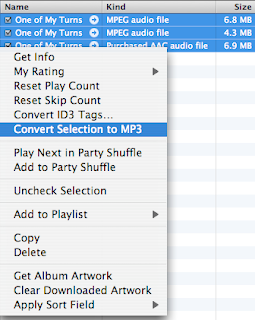
Simply select a song or a group of songs you want to convert and ctrl-click (right click) on the selection. From the menu, simply choose Convert Selection to MP3. iTunes will make a copy of the original song, in MP3 format, and add it to your iTunes music library.
Details
The "Plus" means several things:
1. No DRM (digital rights management a.k.a. copy protection). This means you can legally make as many copies as you want under the fair-use rules of copyright.
2. Higher quality encoding. Previously, songs purchased on iTunes were encoded at 128 kbps. iTunes Plus songs are recorded at twice that sampling rate (256 kbps).
3. Thirty cents (30¢) more per song. When the iTunes store first launched, 3 songs = 1 Mocha. Even with the higher priced, DRM free songs, that formula still holds true. Plus, you can still buy songs at 99¢, with DRM, if you'd like.
 Quality Encoding
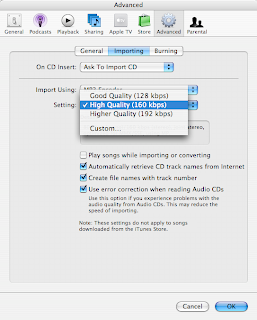
In the image, above, you'll see that the original iTunes Plus song was converted, twice, to MP3 (MPEG audio file). The 4.3 MB file is the MP3 with the iTunes encoding conversion rate set to High Quality (160 Kbps) and the 6.8 MB MP3 is an MP3 file with Custom (256 kbps) encoding.
AAC vs. MP3 at 256 Kbps
Personally, I've noticed that the AAC format sounds louder than the MP3 at 256 kbps. It's interesting to note that the MP3 file, recorded at 256 kbps, is smaller than the original AAC encoding format. You can change the default encoding when importing or converting songs through iTunes' Advanced preferences.
Yesterday, Apple began selling some songs, from the EMI record label (Frank Sinatra, Pink Floyd, Paul McCartney, etc), in a new format, called iTunes Plus. Since the new format isn't copy protected it means you can now buy an iTunes Plus song from the iTunes Store and play it on any MP3 player. But, there's one extra, simple, step, you'll need to do to play it on a player other than an iPod; you have to convert the song to MP3 format. Luckily, this feature is already included in iTunes.
 One Step Conversion
Simply select a song or a group of songs you want to convert and ctrl-click (right click) on the selection. From the menu, simply choose Convert Selection to MP3. iTunes will make a copy of the original song, in MP3 format, and add it to your iTunes music library.
Details
The "Plus" means several things:
1. No DRM (digital rights management a.k.a. copy protection). This means you can legally make as many copies as you want under the fair-use rules of copyright.
2. Higher quality encoding. Previously, songs purchased on iTunes were encoded at 128 kbps. iTunes Plus songs are recorded at twice that sampling rate (256 kbps).
3. Thirty cents (30¢) more per song. When the iTunes store first launched, 3 songs = 1 Mocha. Even with the higher priced, DRM free songs, that formula still holds true. Plus, you can still buy songs at 99¢, with DRM, if you'd like.
 Quality Encoding
In the image, above, you'll see that the original iTunes Plus song was converted, twice, to MP3 (MPEG audio file). The 4.3 MB file is the MP3 with the iTunes encoding conversion rate set to High Quality (160 Kbps) and the 6.8 MB MP3 is an MP3 file with Custom (256 kbps) encoding.
AAC vs. MP3 at 256 Kbps
Personally, I've noticed that the AAC format sounds louder than the MP3 at 256 kbps. It's interesting to note that the MP3 file, recorded at 256 kbps, is smaller than the original AAC encoding format. You can change the default encoding when importing or converting songs through iTunes' Advanced preferences.
Friday, May 18, 2007
Interesting iChat Feature

I ran into an interesting iChat feature, tonight, when I was video chatting with my wife between San Diego and Santa Cruz.
In the middle of our video chat I logged off of iChat which closed down both of my sessions with Bonjour and AIM, yet the video chat continued. I didn't test this using an unencrypted video chat session, but, I doubt that makes a difference.
Our video chat session obviously kept going since our two Macs had a direct connection. One minor bug I observed is the fact that she kept typing IMs to me which, from her end, looked like they were being delivered when they were really ending up in a bit bucket.
Tuesday, April 10, 2007
Online Cheat Sheet
My mother finally got online and has her first e-mail address. Undoubtedly, she'll have technical problems - where to begin?
"Mom, this is your login and password for the computer..."
"Mom, this is your login and password for your e-mail..."
"Mom, this is your login and password for your ISP..."
"Mom, this is your password for the wireless base station..."
Next comes customer service...
Luckily, Apple has a great Mac cheat sheet - I wish I thought of this simple solution:

"Mom, this is your login and password for the computer..."
"Mom, this is your login and password for your e-mail..."
"Mom, this is your login and password for your ISP..."
"Mom, this is your password for the wireless base station..."
Next comes customer service...
Luckily, Apple has a great Mac cheat sheet - I wish I thought of this simple solution:
Thursday, February 8, 2007
Repartitioned Hard Disk w/ Boot Camp
I recently moved from a G-5 desktop to a Mac Pro using Mac OS X's default data migration option which is available the first time you turn on a new Macintosh. The only problem was I forgot about the other disk partition I have which is running Leopard (Mac OS X 10.5) until all my data was migrated. Now what do I do?
Repartition on the Fly
The answer was simple. I used Apple's Boot Camp beta partition option to dynamically create a new disk partition. Of course, Boot Camp thought it was going to install Windows on the new partition. Instead, I just installed Leopard.
Repartition on the Fly
The answer was simple. I used Apple's Boot Camp beta partition option to dynamically create a new disk partition. Of course, Boot Camp thought it was going to install Windows on the new partition. Instead, I just installed Leopard.
Friday, January 5, 2007
Mac OS X Password Reset
Here's something I never knew until my father-in-law's iMac refused to let him log in with his password...
The Mac OS X install disk has a password reset utility for just this occasion.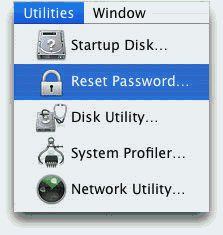
Simply pop in the install disk and reboot. Hold down the C key on the keyboard when you hear the Macintosh start up gong. This will boot the Mac off the install CD/DVD. Pick the main language you want to use on the first screen and then, on the second screen, choose Utilities —> Reset Password...
Obviously, you don't need to know the old password - just pop in your new password, confirm it, and your done.
If you've enabled FileVault, then you'll need to skip these steps and simply enter the account's master password. If you don't know the master password for your FileVault account then your data is lost forever.
The Mac OS X install disk has a password reset utility for just this occasion.

Simply pop in the install disk and reboot. Hold down the C key on the keyboard when you hear the Macintosh start up gong. This will boot the Mac off the install CD/DVD. Pick the main language you want to use on the first screen and then, on the second screen, choose Utilities —> Reset Password...
Obviously, you don't need to know the old password - just pop in your new password, confirm it, and your done.
If you've enabled FileVault, then you'll need to skip these steps and simply enter the account's master password. If you don't know the master password for your FileVault account then your data is lost forever.
Tuesday, November 28, 2006
Mac OS X vs Windows
I've worked on Windows computers much longer than I've worked on Macs. As a software engineer, I've realized a couple key issues with Windows.
Windows Registry
This is a single point failure on Windows. The registry database is used to store the settings and options for Windows' users, applications, preferences, and hardware. When Windows boots up, it reads this database of settings. If the registry gets corrupted, it can render Windows unbootable. When applications install and uninstall themselves they update the registry. When a program fails to uninstall correctly, it can leave cruft in the registry which can lead to performance and stability problems. This is why Windows computers really do slow down, over time, as you install and uninstall more and more applications.
How does Mac OS X get by without a registry? Simple, each application has preferences which are stored in preferences folders. For user specific preferences, the folder is stored under the user's home folder. For system wide preferences, the folder is stored in a globally accessible location. The preferences data is a human readable file (called a plist which is short for property list), which can be edited by hand - but manually editing a plist is rare. The plist file is only read when needed - unlike the Windows Registry, which must fully load to complete the boot up process. If the plist file becomes corrupted it can usually just be deleted and the respective application will create a new one the next time it loads.
Networking
On the desktop computer there are basically two operating systems: Windows and Unix.
Windows 98, ME, NT, 2000, etc, are different flavors of Windows with roots that go back to MS-DOS circa 1980. Free BSD, Linux, Open BSD, AT&T, Solaris, and Mac OS X all have their roots in unics [sic] circa 1969.
In the world of high-tech, new usually means better, but that's not the case when it comes to security. MS-DOS got its start on PCs in the early 1980s when there was no local area network and there was no need to log into a PC. Unix, on the other hand, ran on mainframe computers which were accessible by multiple users at once. So, from the beginning, unix had the concept of users, permissions, and security.
Retrofitting security into Windows has been its biggest Achilles' heel. Of course, with more than 90% of the desktop market share it's also a big target.
I joke that Windows is an "open system" in that all of its ports and services were left wide open for attacks.
Windows Registry
This is a single point failure on Windows. The registry database is used to store the settings and options for Windows' users, applications, preferences, and hardware. When Windows boots up, it reads this database of settings. If the registry gets corrupted, it can render Windows unbootable. When applications install and uninstall themselves they update the registry. When a program fails to uninstall correctly, it can leave cruft in the registry which can lead to performance and stability problems. This is why Windows computers really do slow down, over time, as you install and uninstall more and more applications.
How does Mac OS X get by without a registry? Simple, each application has preferences which are stored in preferences folders. For user specific preferences, the folder is stored under the user's home folder. For system wide preferences, the folder is stored in a globally accessible location. The preferences data is a human readable file (called a plist which is short for property list), which can be edited by hand - but manually editing a plist is rare. The plist file is only read when needed - unlike the Windows Registry, which must fully load to complete the boot up process. If the plist file becomes corrupted it can usually just be deleted and the respective application will create a new one the next time it loads.
Networking
On the desktop computer there are basically two operating systems: Windows and Unix.
Windows 98, ME, NT, 2000, etc, are different flavors of Windows with roots that go back to MS-DOS circa 1980. Free BSD, Linux, Open BSD, AT&T, Solaris, and Mac OS X all have their roots in unics [sic] circa 1969.
In the world of high-tech, new usually means better, but that's not the case when it comes to security. MS-DOS got its start on PCs in the early 1980s when there was no local area network and there was no need to log into a PC. Unix, on the other hand, ran on mainframe computers which were accessible by multiple users at once. So, from the beginning, unix had the concept of users, permissions, and security.
Retrofitting security into Windows has been its biggest Achilles' heel. Of course, with more than 90% of the desktop market share it's also a big target.
I joke that Windows is an "open system" in that all of its ports and services were left wide open for attacks.
Design & Marketing
Design
That's the single word that best describes Apple. Not just industrial design, but UI design, software architecture design, design through layers of abstraction. The product of this is elegance and simplicity.
Marketing
It's about the marketing. Microsoft is, first and foremost, a marketing company. Although they lose when it comes to innovation, they clearly win when it comes to marketing and, obviously, money. Simply put, you cannot gain 90+% of the desktop market share without being the marketing king.
That's the single word that best describes Apple. Not just industrial design, but UI design, software architecture design, design through layers of abstraction. The product of this is elegance and simplicity.
Marketing
It's about the marketing. Microsoft is, first and foremost, a marketing company. Although they lose when it comes to innovation, they clearly win when it comes to marketing and, obviously, money. Simply put, you cannot gain 90+% of the desktop market share without being the marketing king.
Apple vs Microsoft?
"Apple should have licensed the Mac's operating system."
No, not really.
Direct comparison of the two companies' business models is - pardon the pun - like comparing apples to oranges. Seriously, Apple is a hardware company, like Dell or HP, and Microsoft is a software company. Just to be clear, hardware companies make their money selling hardware and vice versa. Not to mention, changing business models of this magnitude is not simple. (IBM, who successfully did this in the mid 1990s after a near death experience, is the rare exception.)
Apple appears to be the personal computer company that's been around the longest. Although a big chunk of Apple's revenue comes from the iPod how many other multi-billion dollar computer companies, after 30 years, are still selling what they sold on day one?
As an Apple shareholder, I much prefer comparing Apple, with its $78B market cap, to Dell, with it's $61B market cap.
(Yes, I know Apple did license its OS in the mid 1990s.)
No, not really.
Direct comparison of the two companies' business models is - pardon the pun - like comparing apples to oranges. Seriously, Apple is a hardware company, like Dell or HP, and Microsoft is a software company. Just to be clear, hardware companies make their money selling hardware and vice versa. Not to mention, changing business models of this magnitude is not simple. (IBM, who successfully did this in the mid 1990s after a near death experience, is the rare exception.)
Apple appears to be the personal computer company that's been around the longest. Although a big chunk of Apple's revenue comes from the iPod how many other multi-billion dollar computer companies, after 30 years, are still selling what they sold on day one?
As an Apple shareholder, I much prefer comparing Apple, with its $78B market cap, to Dell, with it's $61B market cap.
(Yes, I know Apple did license its OS in the mid 1990s.)
Monday, November 27, 2006
Lousy Safari Experience Fixed

I've been getting a little frustrated with Safari since moving to a machine with an Intel processor due to the spinning beach ball popping up way too often. But, I think I figured out what the problem was... the problem was especially noticeable on Web sites that made heavy use of Flash.
To fix the problem, I downloaded the latest Flash plug-in from Adobe. I'm thinking that my version of Safari, which was moved over from my PPC box, may have had a Flash plug-in that was compiled for the PPC; hence, it had to use Rosetta to translate the plug-in from PPC to Intel.
I haven't confirmed this scientifically, but I'm definitely noticing an improvement. Or maybe, the plug-in version I downloaded, dated 11/14/06, just had some big improvements. Either way, I'm happy.
PS- To take a perfect screen shot on Mac OS X, just press CMD-Shift-4 and, when you see the cross hairs, press the spacebar. Your cross hairs will turn into a camera icon. As you move the camera icon over each window it'll be highlighted. Just click the mouse on the window and the screen shot will be saved to your desktop as a PNG file. To save the screenshot to the clipboard, press CMD-Shift-CTRL-4 instead.
Sunday, November 26, 2006
New MacBook Pro Data Migration
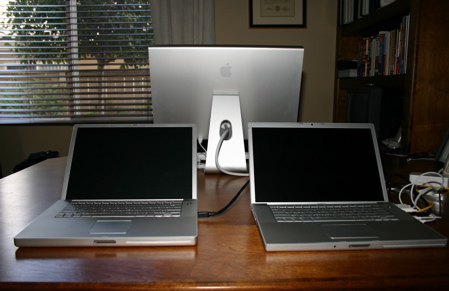
Whenever I get a new computer, my biggest problem is migrating all my old stuff to my new machine. Usually, I just use Carbon Copy Cloner to mirror the old hard drive to the new one, but that won’t work since I’m moving from a PowerBook with a PPC processor to a MacBook Pro with an Intel processor (my PPC version of Mac OS X is not Universal).
Of course, Apple has already solved this migration problem for me. The first time I turned on the new MacBook Pro, it asked me if I wanted to move my data from another Mac. I simply connected the computers using FireWire and everything was moved to the new computer including my home folder, preferences, apps, and network settings. There was one minor exception: I had to manually install Apple’s developer tools since that folder isn’t kept with the regular applications.
Disclaimer: I’ve worked for Apple for eight years. Not only had I never used a Mac before coming to Apple, but for my first three and a half years at the company I only worked on Windows NT and Windows 2000 on a daily basis.
Subscribe to:
Posts (Atom)